Docker Installation
I. Why Docker?
1/ Problem & Solution
- Developers often build code that works on their local setup but fails on other computers due to differences in OS, dependencies, or environment configurations -> Docker packages code along with its dependencies (e.g., Node.js, Python), system tools, and settings into a standardized unit. This ensures the application runs consistently anywhere.
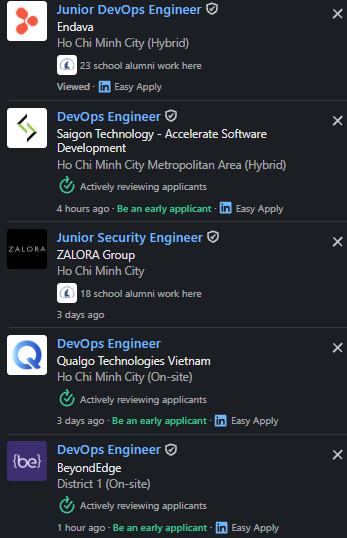
- So, this simplifies code sharing, streamlines development and deployment, and is a high-demand skill in tech job postings.

2/ Docker Images vs Docker Containers
-
Docker Image (The Recipe): Contains all the instructions, system tools, code, and dependencies needed to run the application.
-
Docker Container (The Meal): A running instance created from an Image. You can spin up multiple containers from a single Docker image.
II. Installing Docker
1/ Check if Virtualization is enabled or not
- right click on the windows icon
- select 'task manager' -> 'open navigation'

here you can see whether if your Virtualization is enabled or not
2/ Installing WSL2
- check wsl version:
wsl --versionin the terminal (shell or git bash) (if shell then 'run as administrator') - if not installed ->
wsl --install

then this screen will pop up, wait for it
- to update wsl use
wsl --update
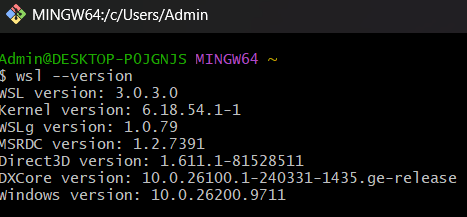
once wsl is installed, we move on to the next stage
3/ Installing Docker Desktop
- go to docker.com and select your correct OS to download
- once finished. you should see the docker desktop on ur device now

- after installing and signing up, it should look like this
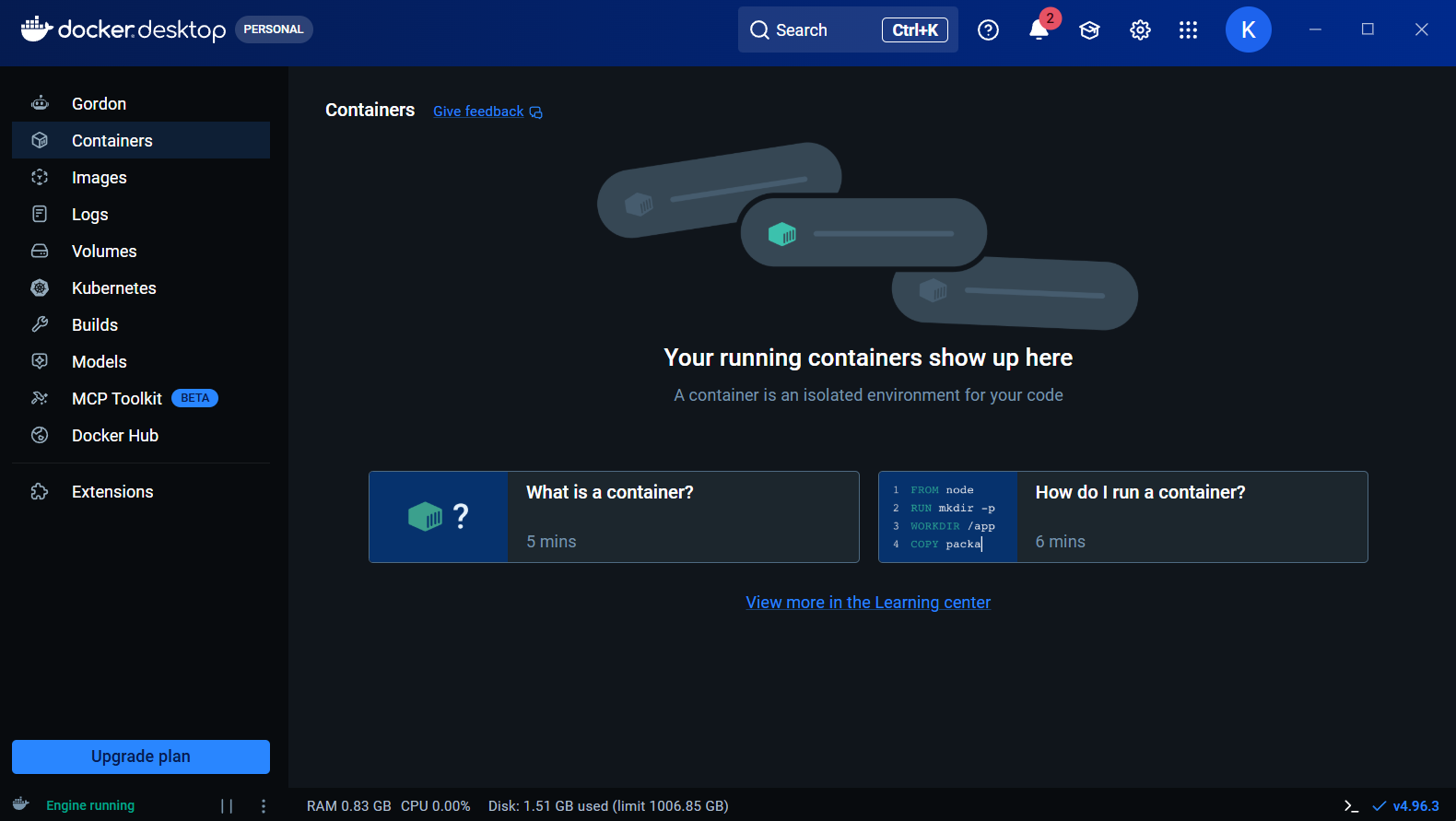
- turn on your docker desktop -> on the corner left side u might see 'engine running', then u might execute the
docker run hello-worldto see whether we can now use library in Docker Hub yet or not
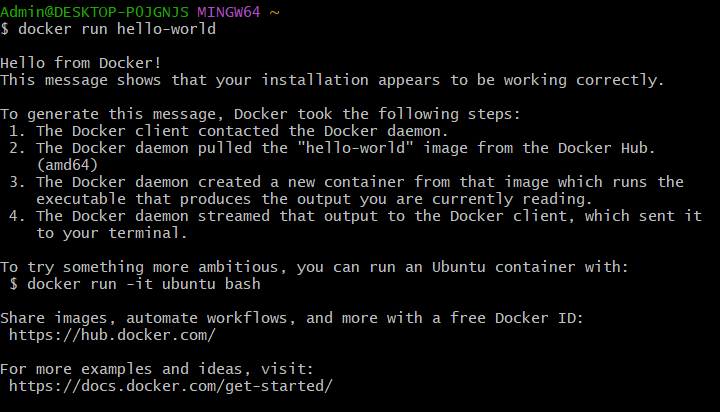
the result should be just like this
4/ Docker Basic Commands
docker images: show you all the Images which are presented locally on ur windows os

docker ps: see all the running Containers

docker ps -a: see all the previously ran Containers

So overall, find your resources in Docker Hub (for example, Ubuntu, Langchain, Pytorch,...), and use them with the provided tutorials below
III. Reference Sources
- ProgrammingKnowledge (2026). How To Install Docker on Windows 11 (2026). Youtube
- The Coding Sloth (2025). The Only Docker Tutorial You Need To Get Started. Youtube